Three ways to interview
When you open a conversation with an applicant, the Request interview button lets you pick how you want to meet:
Virtual. A video interview that happens right on Jobbli. Once the candidate confirms a time, a Join button appears for both of you. There are no apps to install and no meeting links to send.
Phone call. The candidate shares their number when they confirm the time, and you call them.
In person. The candidate comes to your business. Your address is sent with the request automatically.
Scheduling an interview
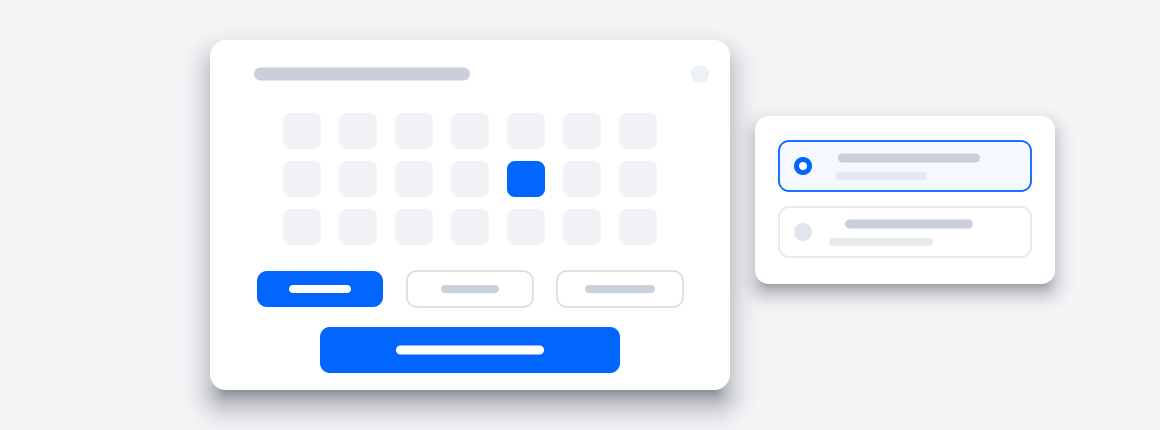
From Messages, open the conversation and click Request interview. From the Candidates page, open an applicant and use the Virtual interview tab. Either way you offer up to 4 time slots on the calendar, and the candidate picks the one that works for them.
When they confirm, you both get a confirmation email and the interview shows up in your Virtual interview tab and calendar. Times that have already passed cannot be picked, and if the candidate never responds before the times pass, the request shows as Expired so you can send fresh times.
The virtual interview room
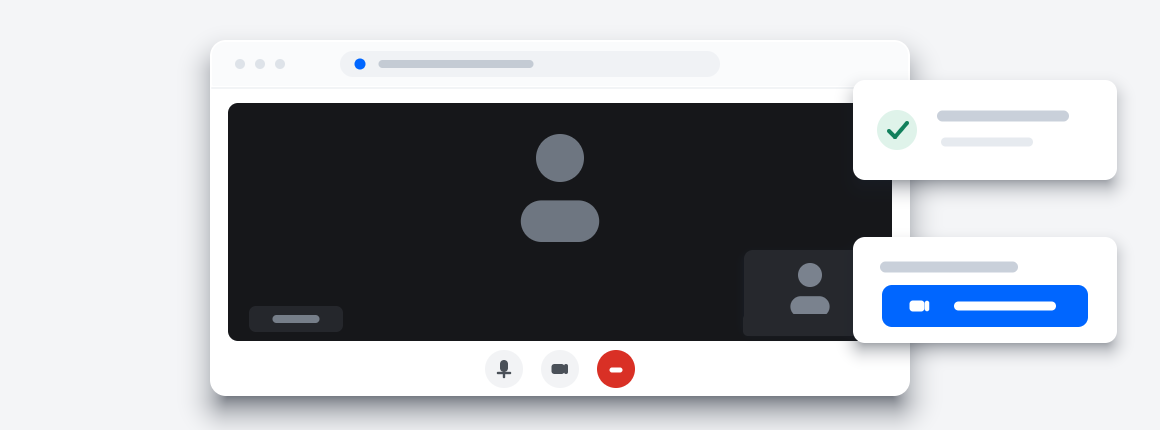
At the scheduled time, click Join room from your Virtual interview tab or the Join button in the conversation. You land in a lobby where you can check your camera and microphone before entering.
Inside the room you have everything you need for the interview: the candidate's resume, private notes that save as you type, and a chat. The candidate only sees the chat.
Reminders
About 15 minutes before a confirmed virtual interview, you and the candidate both get an email with the join link. Candidates who turned on text alerts also get a text. Nobody has to dig through their inbox for a meeting link.
Your interview notes
Notes you write during an interview are saved to your account, not just that browser tab. You can read and edit them any time from Candidates, in the Virtual interview tab, using the Notes button on each interview. Only you can see them. The candidate never can.
Safety and privacy
Interview rooms only exist for confirmed interviews, and only the two of you can enter. Jobbli keeps a log of who joined and when, which protects both sides if there is ever a dispute. Interviews are never recorded, and no video or audio is stored or watched by anyone.
After each interview, both sides are asked to rate how it went. That feedback goes to Jobbli and helps keep the platform safe and useful for everyone.
 Contact Us